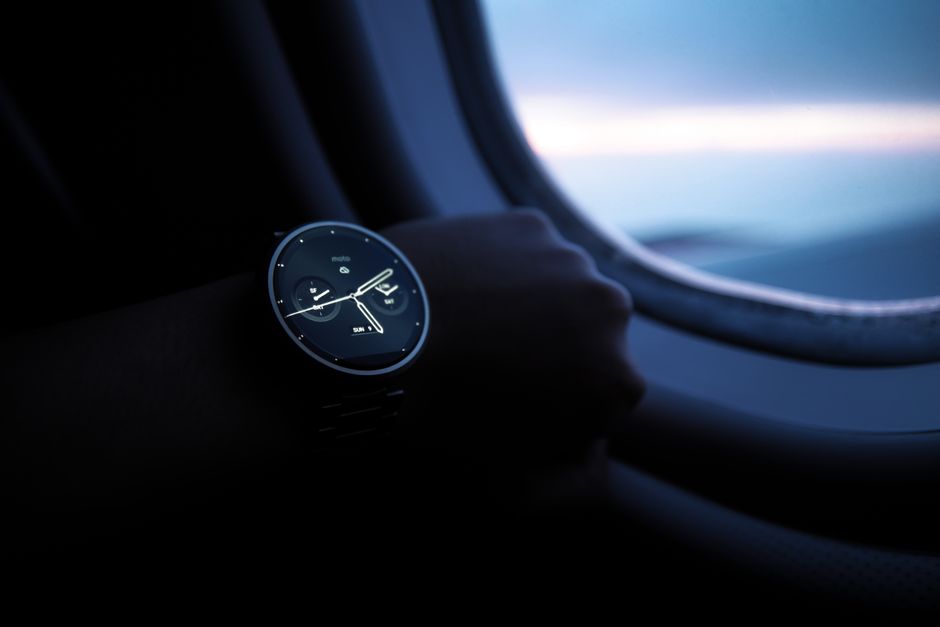
If you’re a Muslim traveler on a long‑haul flight, you can set up automatic Sahoor and Iftar alerts on your smartwatch in just a few steps: enable the HalalFaith app’s Ramadan AI Calendar, grant location and flight‑tracking permissions, select your preferred alert sound, and let the AI adjust times for each time‑zone change and daylight‑saving shift.
Start by downloading the free HalalFaith AI companion from the App Store or Google Play onto your phone, then pair it with your smartwatch (Apple Watch, Samsung Galaxy Watch, Garmin, etc.). The app’s cross‑platform integration ensures that any changes you make on the phone sync instantly to the watch, a crucial feature for travelers who may switch devices mid‑journey.
Next, open the "Ramadan AI Calendar" within the HalalFaith app and tap "Add New Alert." Choose "Sahoor" and "Iftar" as the alert types. You’ll see a toggle for "Automatic Time‑Zone Detection"—turn this on so the AI uses your device’s GPS and airline flight‑tracking data to recalculate prayer times as you cross borders.
If you frequently travel across multiple time zones, activate the "Flight Mode Sync" option. HalalFaith accesses your flight itinerary (you can import it from your email or airline app) and predicts the exact moments you’ll depart and land. The AI then shifts the countdowns for Sahoor and Iftar accordingly, eliminating manual adjustments.
Set your preferred alert method: a gentle vibration, a spoken reminder, or the live Adhan audio from Makkah or Madina. For night‑shift workers or passengers on red‑eye flights, you might prefer a discreet vibration combined with a silent visual cue on the watch face to avoid disturbing fellow travelers.
Customize the alert lead‑time. Many travelers like a 15‑minute warning before Iftar to prepare food, and a 30‑minute notice before Sahoor to wake up. These settings are saved per‑flight, so each segment of your journey can have its own lead‑times if you wish.
Because prayer times depend on sunrise and sunset, the AI also factors in the aircraft’s altitude and the projected ground location once you land. This ensures the Sahoor countdown stops at the correct local time even if you land in a region where daylight‑saving starts or ends. For a deeper dive into handling daylight‑saving across zones, see our guide on How to set up automated Sahoor and Iftar reminders that adjust for daylight‑saving changes across multiple time zones.
Don’t forget to enable push notifications for the HalalFaith app on both your phone and smartwatch. On iOS, go to Settings → Notifications → HalalFaith and allow alerts; on Android, open Settings → Apps → HalalFaith → Notifications. This ensures the watch receives the alerts even when the phone is in airplane mode.
If you prefer a visual reminder on the watch face, add the "Ramadan Countdown" widget. It displays a live countdown to the next Sahoor or Iftar, automatically updating as you cross time zones. Most major watch OSes let you customize watch faces with multiple widgets, so you can keep prayer times front‑and‑center.
Finally, test the setup before you depart. Simulate a time‑zone change in the app’s settings and verify that the watch vibrates at the correct moment. This pre‑flight check gives you confidence that the AI will handle real‑world flight delays or early arrivals without missing a beat.
By following these steps, your smartwatch becomes a reliable travel companion, delivering accurate Sahoor and Iftar alerts no matter how many time zones you cross. With HalalFaith’s AI‑driven precision, you can focus on your journey while staying true to your fasting commitments.